
Lesson
B1 · Intermediate
Reading
Why Won’t It Save? Read the App Messages
Interpret six original app messages, choose a matching help path and distinguish progress from completion across eighteen evidence-based checks.
10 min read
1,703 words
Updated Oct 24, 2026

On this page (7 sections)
B1 • 29 minutes • 18 scored checks. Interpret six original app messages, choose a matching help path and distinguish progress from completion across eighteen evidence-based checks.
A fictional app workspace
You are reading a fictional workspace in Sprout Notes. Six messages appear below. They are static text examples: no real upload, download, login or deletion is required. All files, times and app behaviour belong to this invented scenario.
Read M1–M6 once for their general purpose. Then look for what is affected, the stated problem or status, any consequence, and the supported next step. Some messages do more than one job. Keep their labels in your notes so every answer can be traced to its source.
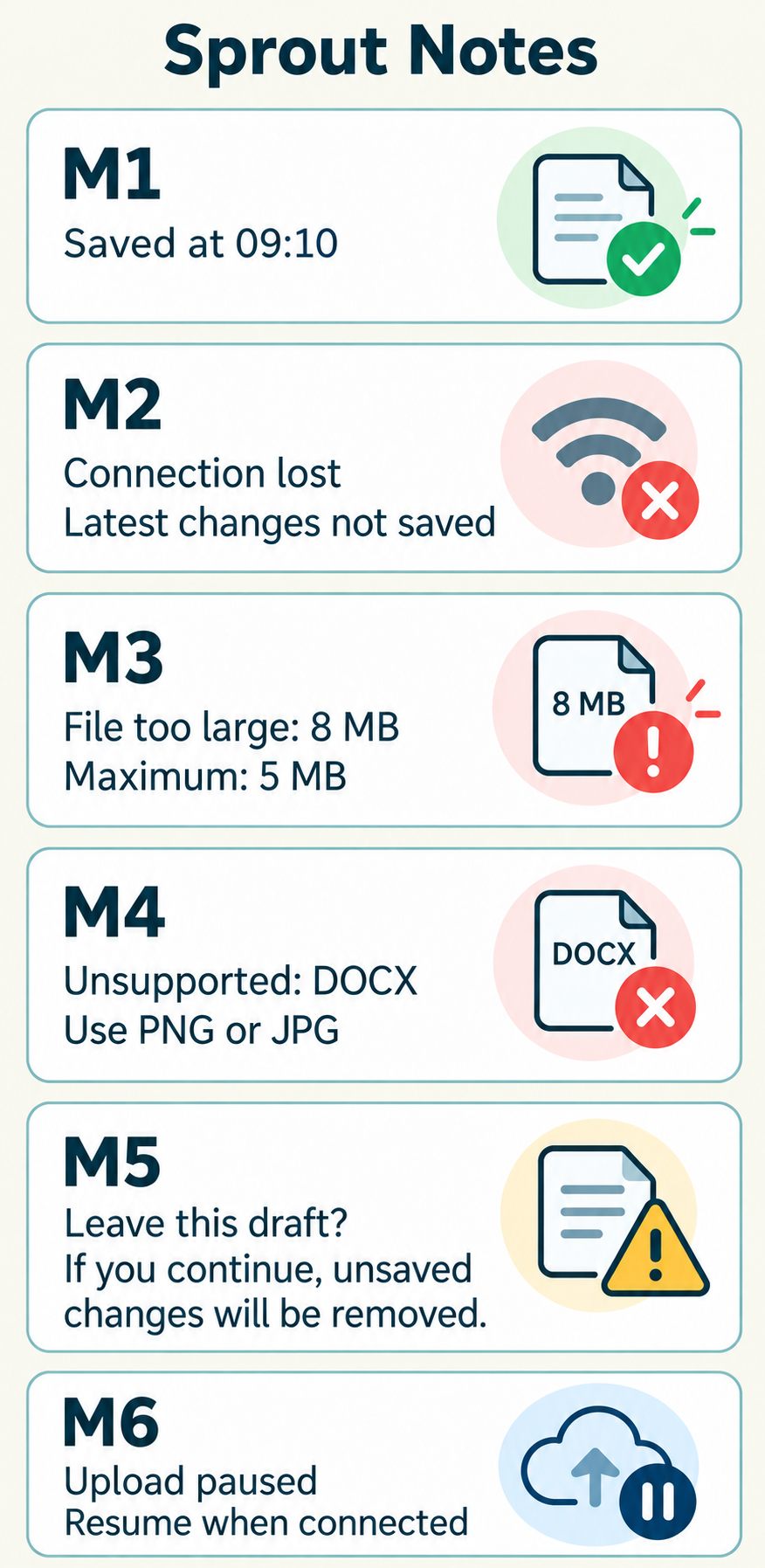
Message | Exact wording |
|---|---|
M1 | Saved at 09:10. Your note is stored in this workspace. |
M2 | Connection lost. Your latest changes have not been saved. Reconnect, then select Save. |
M3 | File too large: 8 MB. Maximum file size: 5 MB. Choose a smaller file. |
M4 | Unsupported format: DOCX. Images must be PNG or JPG. Choose an accepted image format. |
M5 | Leave this draft? If you continue, the unsaved changes in this draft will be removed. Cancel keeps this draft open. |
M6 | Upload paused. Select Resume when the connection is available. The message does not state whether earlier uploads finished. |
Sort the messages by purpose
A status message tells you what is happening or what has happened. A warning describes a possible consequence of a choice. An instruction asks for a next step. One card can combine these functions: an error can name a problem and then tell you what to do.
The questions specify the relevant part when a message has two purposes. For example, asking how a card begins is different from asking what its final sentence requests. Read those limits carefully instead of forcing every message into one permanent category.
Answer on paper, then open the explanations below. Enable JavaScript to check answers here.
Find the problem and consequence
Complete the six problem-and-consequence fields using the exact message wording. A number may refer to the current file or the permitted maximum; those are separate fields. A warning may affect only unsaved changes in one draft, not everything in a workspace.
Use not stated when a question goes beyond the text. The phrase have not been saved means that the latest changes are not saved yet. It does not prove a cause and does not describe every earlier note. Keep your answer short and limited to the requested detail.
Answer on paper, then open the explanations below. Enable JavaScript to check answers here.
Match messages to help steps
Read the four fictional help steps below. Match the named problem to its own path. The steps are alternatives, not a checklist to perform in sequence. Choosing a smaller file addresses size; choosing PNG or JPG addresses format.
You are selecting a text answer, not operating a real app. In the scenario, a proposed step still needs a later status message to establish its result. A technically plausible action is not the correct reading answer if the source supports a different next step.
Help step | Text |
|---|---|
H1 | Connection message: reconnect first, then select Save. Read the new status. |
H2 | Size message: choose a file of 5 MB or less, then try the upload again. |
H3 | Format message: choose a PNG or JPG image, then try the upload again. |
H4 | Paused-upload message: when a connection is available, select Resume. |
Answer on paper, then open the explanations below. Enable JavaScript to check answers here.
Read the final status
The fictional user follows the matching help step. Read the four new messages F1–F4. Later messages can replace earlier statuses when they refer to the same action. However, a request being received or a progress percentage is not a completion message.
For each result, decide what has actually been confirmed. Do not extend success for one named image to every file in the account. The same careful scope applies to failure: one paused upload does not mean all old uploads failed.
Result | New message |
|---|---|
F1 • after M2 | Saved at 09:18. Your latest changes are stored. |
F2 • after M3 | Uploading: 40%. Please wait. |
F3 • after M4 | Upload complete: sketch.png. |
F4 • after M6 | Request received. Checking upload status. |
Answer on paper, then open the explanations below. Enable JavaScript to check answers here.
Check source-based answers
Review eighteen answers: four purpose checks, six problem fields, four help matches and four final-status checks. Each feedback explanation quotes the source sentence that decides the answer. If you chose from general computer knowledge, compare that idea with the narrower wording on the card.
Record one useful distinction in your notes: instruction versus result, current file versus size limit, or a draft's unsaved changes versus all account data. This reading habit helps you report a problem accurately without adding unsupported causes or private information.
For help with your issue summary, review clear English sentence structure.
Write a clear issue summary
Write 45–60 words about the M2 to F1 sequence. State the action attempted, quote the original status, give the specified next step and report the final visible result. Describe only this invented case. Do not include passwords, personal notes or claims about who caused the problem.
Check that the final sentence agrees with F1 rather than leaving the report at M2's earlier failure. A useful issue summary shows chronology: first the attempt, then the message, then the step, then the result. Compare with the model after writing your own version.
Your turn · self-review
Your transfer task
Write your own response first, then open the model and compare. Checklist: 45–60 words; attempted action; exact message; ordered step; final status; no credentials or invented cause.
Practice only. Your writing stays on this page; it is not submitted or saved.
-
Model answer and explanation
I tried to save changes in the fictional Sprout Notes draft. The app showed “Connection lost” and said the latest changes had not been saved. The instruction was to reconnect, then select Save. After that step, the new message reported “Saved at 09:18” and confirmed that the latest changes were stored.
Related Lessons






Continue learning this topic
Review an explanation, study examples or try a related practice test.
- Practice test Two Former FBI Officials Charged Over Statements Concerning Hunter Biden — C2 English Reading Practice Test
- Practice test The latest in space science: We look back at the Big Bang — C1 English Listening Practice Test
- Practice test The latest in space science: We look back at the Big Bang — C1 English Grammar Practice Test